Tango-DJ User Guide
Getting Started
Tango-DJ is designed to make DJ work easier with automatic tanda management and tablet display.
Installation
- Download the latest version from the website
- Open the .dmg file and drag Tango-DJ to your Applications folder
- The first time you open the app, you must approve it from an identified developer
System Requirements
- macOS 15.5 or newer
- Minimum 4 GB RAM
- 500 MB free disk space
Basic Usage
Audio Equipment and Setup
Primary and Secondary Audio Output
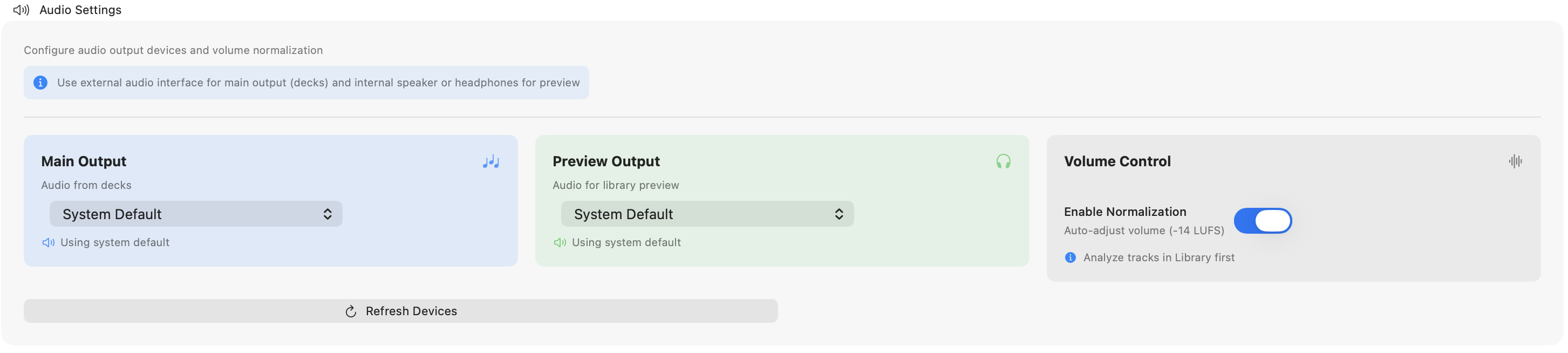
One of the most important features in Tango-DJ is the ability to have two separate audio outputs:
- Primary Audio Output: This is the main sound sent to the dance hall/speakers
- Secondary Audio Output: This is the "preview" sound that only the DJ hears, for example in headphones
This allows you to preview the next song in your headphones while guests hear the current song in the hall.
How to set up audio equipment:
- Go to Settings → Sound
- Select your main system under "Main Output"
- Select your headphones under "Preview Output"
- Refresh devices when you do changes
Music Library
Importing Music
- Click "Import" in the main menu
- Select a folder with MP3, M4A or FLAC files
- Tango-DJ automatically reads metadata (artist, title, album)
- You can set cue point by right clicking the file

Organizing into Tandas
A tanda is a collection of 3-4 songs with the same orchestra and style played consecutively:
- Click "New Tanda" in the sidebar
- Drag and drop songs into the tanda
- The order can be changed by dragging the songs
- Give the tanda a descriptive name (e.g., "D'Arienzo - Vals")
Cortinas
A cortina is a short pause melody (30-60 seconds) between tandas:
- Mark a song as cortina by right-clicking → "Mark as cortina"
- Cortinas appear with a special icon in the library
- Cortinas are automatically placed between tandas in the playlist
Playlist and Playback
Building a Playlist
- Open "Playlist" from the main menu
- Drag tandas from the library to the playlist
- Cortinas are automatically placed between tandas
- You can change the order of tandas by dragging them
During the Milonga
- Click "Play" to start playback
- Current tanda and next tanda are clearly displayed
- Songs in a tanda play automatically one after another
- Preview next song by clicking the ear icon
Tablet Display
Tango-DJ can automatically display information about the current tanda on an external display or tablet.
Setup
- Go to Settings → Tablet Display
- Note the URL displayed (e.g.,
http://192.168.1.100:8080) - Open this URL on a tablet or another screen
- The tablet display updates automatically when you change songs
- For best design select dark mode on your device
What is Displayed on the Tablet?
- Orchestra/artist
- Song title
- Music style (tango, vals, milonga)
- Next tanda
- DJ name
Advanced Features
Filtering and Search
- Use the search field at the top to find songs, artists, or albums
- Filter by music style: Tango, Vals, Milonga
- Filter by orchestra from the dropdown menu
Automatic Tanda Building
For experienced users:
- Select 3-4 songs from the same orchestra
- Right-click → "Create tanda automatically"
- Tango-DJ suggests an appropriate name based on metadata
BPM Detection and Volume Analysis
Tango-DJ includes powerful audio analysis tools to help you create perfectly matched tandas and maintain consistent volume levels throughout your milonga.
BPM (Beats Per Minute) Detection
The BPM detection feature automatically analyzes the tempo of your songs:
- Automatic Analysis: When importing songs, Tango-DJ automatically detects the BPM
- Manual Override: You can manually adjust BPM values if needed
- Tanda Matching: View BPM information to ensure songs in a tanda have similar tempos
- Search and Filter: Filter your library by BPM range to find songs with matching energy
- Tempo Visualization: BPM is displayed in the song information panel
How to use BPM detection:
- Import your music library - BPM is automatically detected
- View BPM in the song details panel (right-click → "Show Details")
- Use the BPM filter in the search panel to find songs within a specific tempo range
- When building tandas, ensure BPM values are within 5-10 BPM of each other for smooth transitions
Typical BPM ranges for Tango music:
- Tango: 60-72 BPM
- Vals: 56-64 BPM (measures in 3/4 time)
- Milonga: 88-100 BPM
Volume Analysis and Normalization
Consistent volume levels are crucial for a professional DJ experience. Tango-DJ's volume analysis helps ensure all songs play at similar loudness levels:
- Loudness Analysis: Automatic analysis of perceived loudness (LUFS) for each track
- Volume Normalization: Adjust playback volume automatically to maintain consistency
- Peak Detection: Identify songs that might clip or distort at high volumes
- Dynamic Range: View the dynamic range of each track
How to use volume analysis:
- Go to Settings → Audio Analysis
- Enable "Automatic Volume Normalization"
- Set target loudness level (recommended: -14 LUFS for traditional venues)
- The app will automatically adjust playback volume for each song
- View volume information in the song details panel
Best practices:
- Analyze your entire library before your first event
- Set normalization target based on your venue's acoustics
- Monitor volume levels during soundcheck
- Manually adjust individual songs if needed in the song details panel
- Consider remastered recordings may have different loudness characteristics
Technical Notes:
- BPM detection uses advanced beat tracking algorithms
- Volume analysis follows EBU R128 loudness standards
- Analysis runs in the background and doesn't interrupt your workflow
- Results are stored in the database for quick access
Tips and Tricks
For Beginners
- Start with pre-made tandas from experienced DJs
- Use at least 1 cortina between each tanda
- Stick to well-known orchestras at first
- Test audio equipment thoroughly before the event
For Experienced DJs
- Create themed playlists for different types of milongas
- Create backup playlists for different moods
- Export playlists that can be shared with other DJs
Troubleshooting
Sound is Not Working
- Check that the correct audio output is selected in settings
- Check the volume both in Tango-DJ and system settings
- Try restarting the app
Tablet Display is Not Updating
- Verify that tablet and Mac are on the same network
- Check that no firewall is blocking the connection
- Try reloading the page in the browser
Songs Are Not Importing
- Check that files are in a supported format (MP3, FLAC)
- Verify that files are not DRM-protected
- Look for error messages in the log file
License and Trial Period
- Tango-DJ can be used free for 30 days
- After the trial period, you must purchase a license
- The license key is activated in Settings → License
Support
Need help?
- Email: terjelundemotangen@me.com
Good luck with your DJing! 🎵